---
title: Ticket Types
description: Learn how to create and manage ticket types in Eventpack, set availability, pricing, limits, and display options for your event attendees.
---
[Skip to content](https://support.eventpack.com/ticket-types#main-content)
English
Show submenu for translations

Open main navigation
Close main navigation
- English
Show submenu for translations
- Contact us
Contact us
How can we help you?
- There are no suggestions because the search field is empty.
1. [Eventpack Knowledge Base](https://support.eventpack.com/?hsLang=en)
2. [General](https://support.eventpack.com/general?hsLang=en)
# Ticket Types
## This guide will show you how to add a ticket types for your event.
- Select your event and from the left side menu go to **General \> Ticket Types**.
- Click **Add** in the upper-right corner.
- Fill out the form and click **Add** to create your ticket type.
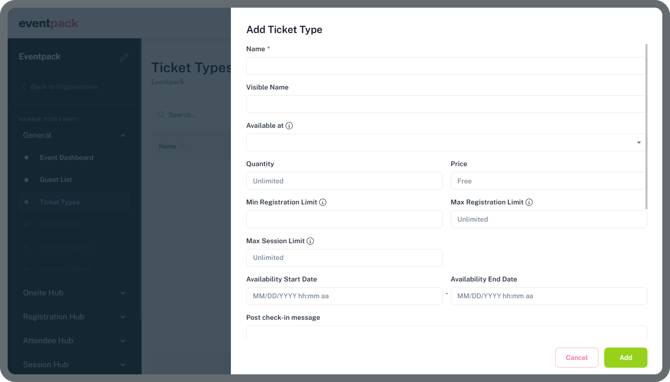
**Name**
This is the visible ticket name on the registration page and event app.
**Visible Name for your ticket**
This field will override the ticket's "**Name\*** field above on the badge and is useful for displaying the **ticket name different** on the badge. Example: Your ticket name is "Early Bird - General Admission" but you'd like to display only "General Admission" on the badge. So you just make the visible name "General Admission" and the ticket name can still say "Early Bird" on the registration page.
**Available at**
This field controls the visibility of your ticket. You can choose where the ticket will be available to register/for sales — on the **Mobile Admin (Onsite app)**, **Mobile Self-Serve (Onsite app - Kiosk Mode)** or **Registration Page**. If no visibility is set the ticket won't be available for registering externally but the organizer can still use it for registering attendees via CSV upload and adding an attendee from the web dashboard.
**Quantity**
Set how many tickets are available. If you leave this field empty, the ticket quantity will automatically be set to unlimited.
**Price**
Enter the ticket price, or leave this field empty to automatically set the ticket as free.
**Minimum Registration Limit**
Set the smallest number of tickets a purchaser can buy in one transaction so you can sell packages
**Max Registration Limit**
Limit how many tickets one person can buy at once on bulk registrations
**Max Session Limit**
Define how many sessions a ticket holder can add to their ticket in total
**Availability Start Date**
The date when this ticket will become available for purchase
**Availability End Date**
The last date tickets can be purchased for this ticket type
**Post check-in message**
A short message attendees will see after they check-in
**Description**
This field allows you to add details or additional information about your ticket. The description will appear on the registration page.
- [General](https://support.eventpack.com/general?hsLang=en)
- [On-Site Hub](https://support.eventpack.com/on-site-hub?hsLang=en#main-content)
- [Badge Designer](https://support.eventpack.com/on-site-hub?hsLang=en#badge-designer)
- [Partner Hub (Exhibitors & Sponsors)](https://support.eventpack.com/partner-hub-exhibitors-sponsors?hsLang=en#main-content)
- [For Event Organizers](https://support.eventpack.com/partner-hub-exhibitors-sponsors?hsLang=en#for-event-organizers)
- [For Partners (Exhibitors & Sponsors)](https://support.eventpack.com/partner-hub-exhibitors-sponsors?hsLang=en#for-partners-exhibitors-sponsors)
- [Session Hub](https://support.eventpack.com/session-hub?hsLang=en)
- [Registration Hub](https://support.eventpack.com/registration-hub?hsLang=en)
- [Attendee Hub](https://support.eventpack.com/attendee-hub?hsLang=en)
- [Partner Hub](https://support.eventpack.com/partner-hub?hsLang=en)
- [On-Site App](https://support.eventpack.com/on-site-app?hsLang=en)
[](http://eventpack.com)
[mailto:email@email.com](mailto:email@email.com)
Copyright © 2026, Eventpack