---
title: Sign Documents
description: Learn how to add and manage sign documents in Eventpack, making signing mandatory, sending via email, and applying documents to all ticket types.
---
[Skip to content](https://support.eventpack.com/sign-documents#main-content)
English
Show submenu for translations

Open main navigation
Close main navigation
- English
Show submenu for translations
- Contact us
Contact us
How can we help you?
- There are no suggestions because the search field is empty.
1. [Eventpack Knowledge Base](https://support.eventpack.com/?hsLang=en)
2. [On-Site Hub](https://support.eventpack.com/on-site-hub?hsLang=en)
# Sign Documents
## This guide will show you how to add your signature documents to your event
- Select your event and from the left side menu go to **Onsite Hub \> Sign Documents.**
- This allows you to **add an additional step in your kiosk** where attendees can sign one or multiple document(s).
- Click **Add** in the upper-right corner to add a sign document.
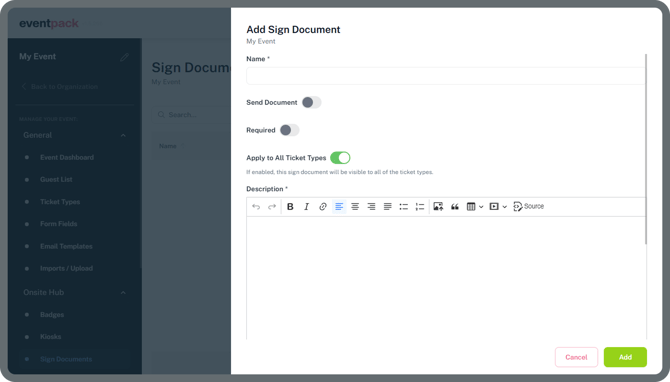
**Send Document**
When enabled, this document will be sent to the attendee’s email once signed.
**Required**
When enabled, signing this document becomes a mandatory step before proceeding to the next step on the kiosk.
**Apply to All Ticket Types**
When enabled, this sign document will be visible to all ticket types.
If this feature is disabled, you’ll need to manually select which ticket types the sign document applies to. Useful if only specific attendees have documents to sign (like Speaaker agreement to be signed by Speaker ticket type only)
> **Note:** Before selecting a ticket type, *make sure you have created your ticket types. You can find it under the* ***General menu \> Ticket Type*** *to create your first ticket type if it doesn’t exist yet.*
Click here to learn more about[**Ticket Types**](https://www.eventpack.com/ticket-types)
**Description**
Add content (body) of the document to be signed by attendees, which will be displayed on the kiosk. You can either type the text or copy paste from the original source.
Signed documents will be stored on the Eventpack platform in PDF format together with the signers name and timestamp (date/time) of the signature.
- [General](https://support.eventpack.com/general?hsLang=en)
- [On-Site Hub](https://support.eventpack.com/on-site-hub?hsLang=en#main-content)
- [Badge Designer](https://support.eventpack.com/on-site-hub?hsLang=en#badge-designer)
- [Partner Hub (Exhibitors & Sponsors)](https://support.eventpack.com/partner-hub-exhibitors-sponsors?hsLang=en#main-content)
- [For Event Organizers](https://support.eventpack.com/partner-hub-exhibitors-sponsors?hsLang=en#for-event-organizers)
- [For Partners (Exhibitors & Sponsors)](https://support.eventpack.com/partner-hub-exhibitors-sponsors?hsLang=en#for-partners-exhibitors-sponsors)
- [Session Hub](https://support.eventpack.com/session-hub?hsLang=en)
- [Registration Hub](https://support.eventpack.com/registration-hub?hsLang=en)
- [Attendee Hub](https://support.eventpack.com/attendee-hub?hsLang=en)
- [Partner Hub](https://support.eventpack.com/partner-hub?hsLang=en)
- [On-Site App](https://support.eventpack.com/on-site-app?hsLang=en)
[](http://eventpack.com)
[mailto:email@email.com](mailto:email@email.com)
Copyright © 2026, Eventpack