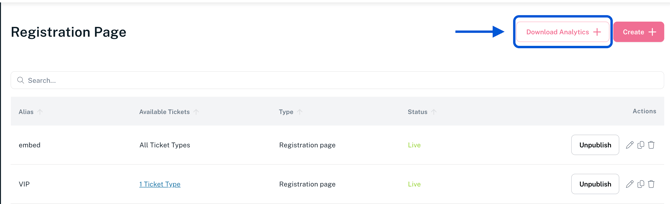
- Select your event and from the left side menu go to Registration Hub > Registration Pages.
- Click Create in the upper-right corner to create a Registration Page.
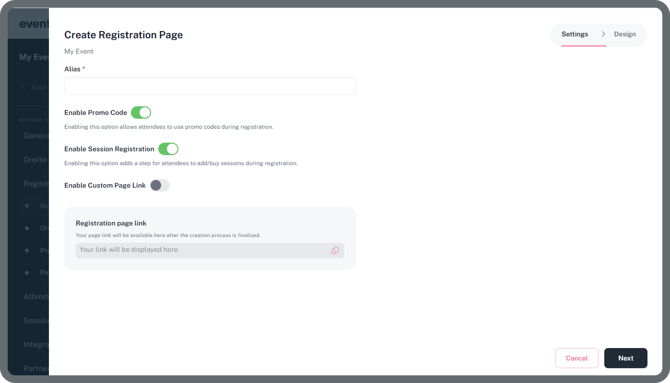
Alias
Give the related registration page a name (for internal purposes - this information won't be visible for the attendees).
Enable Promo Code
When enabled, attendees can use promo codes during registration. (Promo codes need to be setup separately)
Enable Session Registration
When enabled, attendees can add or purchase sessions as part of the registration process.
Enable Custom Page Link
When enabled, you can customize the extension of the registration page link.
- Click Next to design the Registration Page.
- Select the Component that you want to edit.
- Use the toggle button on the bottom right corner of the design area to switch between Desktop View, Mobile View and Tablet View.
.png?width=670&height=384&name=image%201%20(2).png)
Component Settings
Widget Tab
Let's you edit the different components in the registration page such as Header, Cover Image, Headline, Ticketing section, Description section, Sessions section, and the Footer.
Note: Depending on the component you selected, additional follow-up settings will be available for you to enable and edit.
Header:
- Event Logo: If you do not use an event logo, your event name will be displayed here.
- Header Background Color: Sets the background color of the header section.
- Header Text Color: Sets the text color used in the header.
Cover Image:
- Upload Cover Image: Add a cover image to display on your registration page.
Note: Cover image ratio is 1:3, minimum resolution 1440x480, recommended 2880x960, max file size can be 5 mbs. Accepted file formats PNG, JPG
- Upload Mobile Cover Image: Let's you add a cover image optimized for mobile devices when enabled.
Note: Cover image ratio is 2:3, minimum resolution 720x480, recommended 1440x960, max file size can be 5 mbs. Accepted file formats PNG, JPG
Headline:
- Customize Headline: When enabled, you can customize the headline text. These changes will override your previous settings but will only apply to this page.
Ticketing Section:
- Apply to All Ticket Types: When enabled, this registration page will be visible to all ticket types.
- Ticketing Method: Choose between Individual Ticket Selection or Group Registration for how attendees register. Individual allow the attendee to purchase only 1 ticket per orderwhilst Group allow to purchase multiple tickets in a single order
Individual Ticket Selection converts the ticket selection component into radio buttons
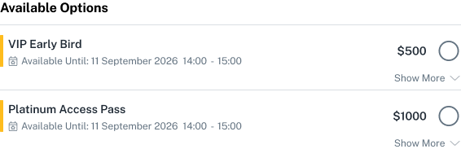
- Ticket Order: Allows you to choose how tickets are sorted by Default, Price (Low-High or High-Low), or Alphabetical Order (A-Z or Z-A)
- Ticket Description Visibility: Controls whether the ticket description is visible on the registration page by default or not . It offers three options:
-
Show All – All ticket descriptions are shown by default, but attendees can manually collapse or expand them.
-
Accordion – Descriptions are hidden by default. Clicking a ticket reveals its description while collapsing the others.
-
Expandable – Descriptions are hidden by default. Attendees can expand or collapse each ticket description independently.
-
- Show Decline Invitation > Only applicable if the Invitations module is used.
When enabled, the Decline Invitation option will be visible to invitees on the registration page.
Description section:
- Title: Enter the main heading or name for the event.
- Subtitle: Add a short supporting line that gives more context to the title.
- Description: Provide a brief summary or additional details about the event.
Sessions section:
- Lets you switch between Default View and By Session Day. Selecting By Session Day organizes sessions under headings that indicate the day they occur.
Footer:
Warning: Do not forget to update the default values with your organization name and email address.
- Organization Name: Allows you to add the name of the organization hosting the event.
- Organization Email Address: Enter an email address for registrants to reach out to you.
Theme Tab
Allows you to change the primary color of the register button and the homepage background color.
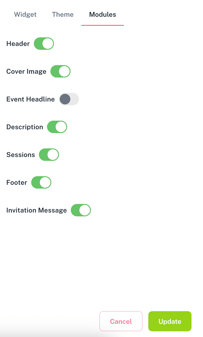
Modules Tab
Allows you to show/hide sections in the registration page. Available modules are shown below:
Analytics
General Analytics about all orders (of all created active registration pages) included failed/incomplete orders can be downloaded from the Registration Hub > Registration Pages page from the Download Analytics button on upper-right corner of the page.