---
title: Onsite App - Sessions page
description: Manage and track event sessions in the Onsite App. View session details, check-in attendees, scan QR codes, and control registration policies easily.
---
[Skip to content](https://support.eventpack.com/onsite-app-sessions-page#main-content)
English
Show submenu for translations

Open main navigation
Close main navigation
- English
Show submenu for translations
- Contact us
Contact us
How can we help you?
- There are no suggestions because the search field is empty.
1. [Eventpack Knowledge Base](https://support.eventpack.com/?hsLang=en)
2. [On-Site App](https://support.eventpack.com/on-site-app?hsLang=en)
# Onsite App - Sessions page
## This guide will show you the overview of the Sessions page on the On-Site Admin App.
- Select your event, then click the **sidebar icon** in the upper-left corner and go to the **Sessions Page**.
- This page allows you to view and manage the list of sessions in the event.
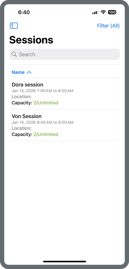
- Click a session to check-in an attendee, also you can view its details, including the number of registered and checked-in attendees and the session’s capacity.
> **Note:** If you haven’t created a session yet, you can create them in the management platform under **Session Hub \> Sessions**.
Click here to learn more about **[Sessions](https://support.eventpack.com/sessions?hsLang=en)**.
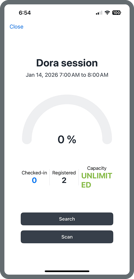
- Click the **Search** button to search and check-in an attendee to the session.
.png?width=149&height=311&name=image%209%20(1).png)
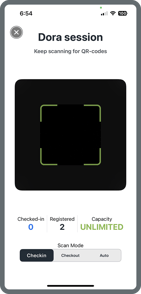
- Click the **Scan** button to scan the attendee’s QR code. QR codes can be found in the ticket confirmation email or printed on the attendee’s badge.
- Multiple scan modes are available. **Auto mode** will check-in the attendee to the session if they are not yet checked-in, or check them out if they are already checked-in.
- When creating or editing a session in the management platform under **Session Hub \> Sessions**, you can configure the **Door Registration Policy** to control how scans handle unregistered attendees:
**Deny All:** Prevents attendees who are not pre-registered for the session to check-in.
**Auto Register:** Automatically registers the attendee to the session and checks them in when their QR code is scanned.
**Manual Register:** Checks if the scanned attendee is pre-registered to the Session; if YES \> attendee will be checked-in immediately, if NO the device operator staff will be flagged that the attendee is not pre-registered to this session and gives them the option to register them and check-in to the session or just deny access to the session and not check them in.
**.png?width=670&height=384&name=image%201%20(62).png)**
- [General](https://support.eventpack.com/general?hsLang=en)
- [On-Site Hub](https://support.eventpack.com/on-site-hub?hsLang=en#main-content)
- [Badge Designer](https://support.eventpack.com/on-site-hub?hsLang=en#badge-designer)
- [Partner Hub (Exhibitors & Sponsors)](https://support.eventpack.com/partner-hub-exhibitors-sponsors?hsLang=en#main-content)
- [For Event Organizers](https://support.eventpack.com/partner-hub-exhibitors-sponsors?hsLang=en#for-event-organizers)
- [For Partners (Exhibitors & Sponsors)](https://support.eventpack.com/partner-hub-exhibitors-sponsors?hsLang=en#for-partners-exhibitors-sponsors)
- [Session Hub](https://support.eventpack.com/session-hub?hsLang=en)
- [Registration Hub](https://support.eventpack.com/registration-hub?hsLang=en)
- [Attendee Hub](https://support.eventpack.com/attendee-hub?hsLang=en)
- [Partner Hub](https://support.eventpack.com/partner-hub?hsLang=en)
- [On-Site App](https://support.eventpack.com/on-site-app?hsLang=en)
[](http://eventpack.com)
[mailto:email@email.com](mailto:email@email.com)
Copyright © 2026, Eventpack