---
title: On-Site App - Registration Management & Event Check-in
description: Manage and check in attendees on the On-Site App Registration page. View profiles, add registrations, print badges, and track session participation easily.
---
[Skip to content](https://support.eventpack.com/on-site-app-registration-page#main-content)
English
Show submenu for translations

Open main navigation
Close main navigation
- English
Show submenu for translations
- Contact us
Contact us
How can we help you?
- There are no suggestions because the search field is empty.
1. [Eventpack Knowledge Base](https://support.eventpack.com/?hsLang=en)
2. [On-Site App](https://support.eventpack.com/on-site-app?hsLang=en)
# On-Site App - Registration Management & Event Check-in
## This guide will show you how to manage Registrations on the On-Site Admin App and check attendees in.
- Once you're logged in to an event on the Eventpack Onsite Admin app you can either check existing attendees registration records and edit them if needed or register a new attendee to this event by clicking the **ADD** button on the top above the Attendee list.
- This will open the registration form of the related event and allow you to add attendee information, select their ticket type and complete the registration.
- Please note that ticket payments **can not** be collected in this mode. If you have paid tickets and want to collect payments from the walk-in registrants you should use the **Walk-in Registration** option in **Kiosk Mode**.
#### **Create a New Registration**
- Click the **Add** button to create a new registration.
.png?width=172&height=359&name=image%202%20(2).png)
- Select the ticket type for the new registration.
> **Note:** Before selecting a ticket type, make sure you have already created your ticket types. You can create them in the management platform under **General \> Ticket Types**.
Click here to learn more about **[Ticket Types](https://support.eventpack.com/ticket-types?hsLang=en)**
- Fill out the registration form with the attendee’s information. To edit or customize form fields, go to the management platform under **General \> Form Fields** and set the visibility of **Mobile Admin** to *visible.*
Click here to learn more about **[Form Fields](https://support.eventpack.com/form-fields?hsLang=en)**.
#### **Attendee Check-In Methods**
- There are several methods to check-in attendees and print their badges:
- Click to any attendee record from the registration list and hit the the **Check-in** button under the profile details.
- Click the **Check-in** button next to the attendee name on the registration list.
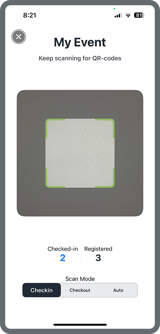
- Click the **Scan** button from top right of the registration list to open the device camera and scan the attendee’s QR code. QR codes can be found in the ticket confirmation email or printed on the attendee’s badge.
- Multiple scan modes are available. **Auto mode** will check the attendee in if they are not yet checked-in, or check them out if they are already checked-in.
#### **Attendee Profile Details**
- Tap on a registration to view the attendee's profile details.
- Within the attendee's profile, there are four sections where you can manage their registration:
**Profile Settings:** Allows you to edit the attendee’s personal details.
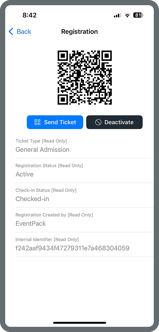
**Registration:** Allows you to view the attendee’s registration information. You can also:
- - **Deactivate the registration** — this will disable their QR code, preventing them from checking in to the event or sessions.
- **Send a ticket email** — click the **Send Ticket** button to send the registration confirmation email to the attendee.
****
**Badges:** Allows you to preview the attendee’s badge. Tap the **Print Badges** button to print the badge if your device is connected to a printer.
**Sessions:** Allows you to view the sessions the attendee has registered for. You can also add sessions manually by tapping **Register to Session** and clicking the **Add** button next to the desired session.
- [General](https://support.eventpack.com/general?hsLang=en)
- [On-Site Hub](https://support.eventpack.com/on-site-hub?hsLang=en#main-content)
- [Badge Designer](https://support.eventpack.com/on-site-hub?hsLang=en#badge-designer)
- [Partner Hub (Exhibitors & Sponsors)](https://support.eventpack.com/partner-hub-exhibitors-sponsors?hsLang=en#main-content)
- [For Event Organizers](https://support.eventpack.com/partner-hub-exhibitors-sponsors?hsLang=en#for-event-organizers)
- [For Partners (Exhibitors & Sponsors)](https://support.eventpack.com/partner-hub-exhibitors-sponsors?hsLang=en#for-partners-exhibitors-sponsors)
- [Session Hub](https://support.eventpack.com/session-hub?hsLang=en)
- [Registration Hub](https://support.eventpack.com/registration-hub?hsLang=en)
- [Attendee Hub](https://support.eventpack.com/attendee-hub?hsLang=en)
- [Partner Hub](https://support.eventpack.com/partner-hub?hsLang=en)
- [On-Site App](https://support.eventpack.com/on-site-app?hsLang=en)
[](http://eventpack.com)
[mailto:email@email.com](mailto:email@email.com)
Copyright © 2026, Eventpack