---
title: On-Site Admin App - Introduction
description: Get an overview of the Eventpack On-Site App. This app manage your registrations, check-ins, badges, and sessions easily from your iPad.
---
[Skip to content](https://support.eventpack.com/on-site-app-introduction#main-content)
English
Show submenu for translations

Open main navigation
Close main navigation
- English
Show submenu for translations
- Contact us
Contact us
How can we help you?
- There are no suggestions because the search field is empty.
1. [Eventpack Knowledge Base](https://support.eventpack.com/?hsLang=en)
2. [On-Site App](https://support.eventpack.com/on-site-app?hsLang=en)
# On-Site Admin App - Introduction
## This guide will show you an overview of the Eventpack On-Site Admin App
The **OnSite App** helps event staff manage registrations, check-in/out attendees to the event and Sessions, print badges, and run kiosks directly from an iPad. It provides real-time access to attendee data, session management and device settings to ensure smooth on-site event operations.
### Download the app
The On-Site App is only available for iOS devices. Go to the Apple App Store and search for **Eventpack On-Site App**.
> **Note:** The on-site app is identified by its blue app icon (see above).
[](https://apps.apple.com/us/app/eventpack-lead-capture/id6469562098)
### Login to On-Site App
Use your Eventpack.com management platform login credentials to login to the app.
### **Forgot Password**
- If you’ve forgotten your password, click **Forgot Password** below the Password field.
- Enter the email address you use to log in to the management platform, then click **Send Password Reset**.
- Check your inbox for an email from **Eventpack** and click the **Reset Password** button.
- Enter your new password and confirm it.
> **Note:** Once you reset your password, it will also be updated for your management platform login.
.png?width=670&height=384&name=image%201%20(60).png)
### Events List Page
- After logging in, you’ll see the Events List page, which displays all events (past and active) associated with the organizations you belong to.
- Use the search bar to find a specific event.
- Tap the **Filter** option in the upper-right corner to refine your event list.
### Reset Data
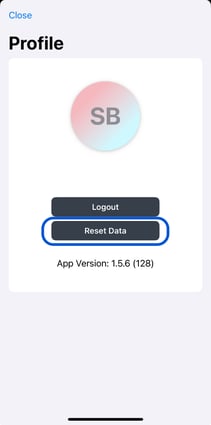
Reset data removes all event data from the app on the related device and downloads the event data from scratch once entering any event after resetting. This is helpful when you realize that any information which is set as Visible for the Onsite App is missing on the app.
- Go back to the Events listing page on the app
- Click the Profile picture on the top left of the event listing page
- Click Reset Data from the module and wait until you see the success message
- Close the module and click the event name again to download event data from scratch
### Log Out to On-Site App
- On the Events List page, tap your profile icon in the upper-left corner of the app.
- Then, tap **Log Out** to sign out of the app.
- [General](https://support.eventpack.com/general?hsLang=en)
- [On-Site Hub](https://support.eventpack.com/on-site-hub?hsLang=en#main-content)
- [Badge Designer](https://support.eventpack.com/on-site-hub?hsLang=en#badge-designer)
- [Partner Hub (Exhibitors & Sponsors)](https://support.eventpack.com/partner-hub-exhibitors-sponsors?hsLang=en#main-content)
- [For Event Organizers](https://support.eventpack.com/partner-hub-exhibitors-sponsors?hsLang=en#for-event-organizers)
- [For Partners (Exhibitors & Sponsors)](https://support.eventpack.com/partner-hub-exhibitors-sponsors?hsLang=en#for-partners-exhibitors-sponsors)
- [Session Hub](https://support.eventpack.com/session-hub?hsLang=en)
- [Registration Hub](https://support.eventpack.com/registration-hub?hsLang=en)
- [Attendee Hub](https://support.eventpack.com/attendee-hub?hsLang=en)
- [Partner Hub](https://support.eventpack.com/partner-hub?hsLang=en)
- [On-Site App](https://support.eventpack.com/on-site-app?hsLang=en)
[](http://eventpack.com)
[mailto:email@email.com](mailto:email@email.com)
Copyright © 2026, Eventpack