---
title: Guest List
description: Manage your Eventpack Guest List easily—view, add, import, or export guests and customize columns to organize your event registrations efficiently.
---
[Skip to content](https://support.eventpack.com/guest-list#main-content)
English
Show submenu for translations

Open main navigation
Close main navigation
- English
Show submenu for translations
- Contact us
Contact us
How can we help you?
- There are no suggestions because the search field is empty.
1. [Eventpack Knowledge Base](https://support.eventpack.com/?hsLang=en)
2. [General](https://support.eventpack.com/general?hsLang=en)
# Guest List
## This guide will show you how to navigate the Guest List section.
- Select your event and from the left side menu go to **General menu \> Guest List.**
- In the **Guest List** section, you can see your event registrants, add new guests, and import or export your list.
- You can modify the information you want to show on your guest list by clicking on the **Column** button. This lets you manage your columns based on your preference, whether you want to add, remove, or rearrange them.
#### **How to add a new guest**
- Click **Add** to add a a new guest to your event.
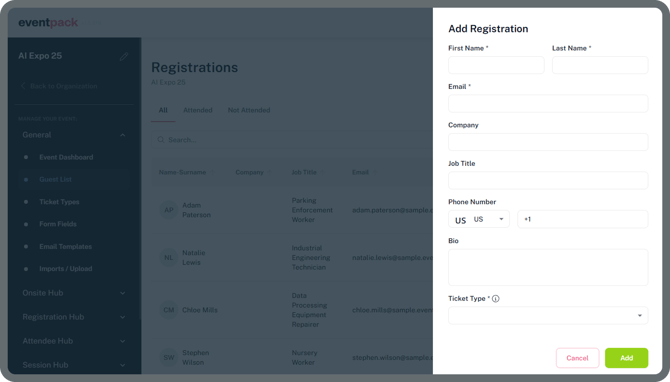
- The registration form can be managed through Form Fields page, you can find it under the **General menu \> Form Fields**.
Click here to learn more about **[Form Fields](https://www.eventpack.com/form-fields)**
> **Note:** Before adding registrations, *make sure you have created at least one ticket type. You can find it under the **General menu \> Ticket Type** to create your first ticket type if it doesn’t exist yet.*
Click here to learn more about **[Ticket Types](https://www.eventpack.com/ticket-types)**
- Click **Add** to add a new guest.
#### **How to export and import guest list**
- Click the Export button to export your guest list. The exported file will be sent to your email in CSV format.
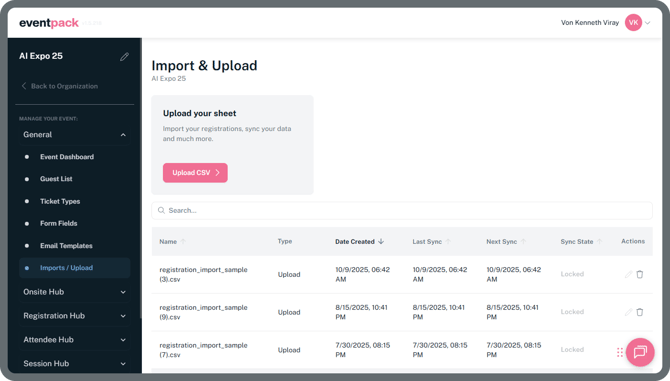
- Click the Import button or go to **General menu \> Imports/Upload** to upload your guest list and sync your data. You can also download and fill out the sample CSV file to ensure a smooth import process.
- First Name and Last Name are mandatory to match when uploading attendees via CSV. All other fields are optional and up to the organizers needs, any information needed for the event can be matched and uploaded during the import process.
Click here to learn more about[**Imports/Upload**](https://support.eventpack.com/import/upload?hsLang=en)**.**
- [General](https://support.eventpack.com/general?hsLang=en)
- [On-Site Hub](https://support.eventpack.com/on-site-hub?hsLang=en#main-content)
- [Badge Designer](https://support.eventpack.com/on-site-hub?hsLang=en#badge-designer)
- [Partner Hub (Exhibitors & Sponsors)](https://support.eventpack.com/partner-hub-exhibitors-sponsors?hsLang=en#main-content)
- [For Event Organizers](https://support.eventpack.com/partner-hub-exhibitors-sponsors?hsLang=en#for-event-organizers)
- [For Partners (Exhibitors & Sponsors)](https://support.eventpack.com/partner-hub-exhibitors-sponsors?hsLang=en#for-partners-exhibitors-sponsors)
- [Session Hub](https://support.eventpack.com/session-hub?hsLang=en)
- [Registration Hub](https://support.eventpack.com/registration-hub?hsLang=en)
- [Attendee Hub](https://support.eventpack.com/attendee-hub?hsLang=en)
- [Partner Hub](https://support.eventpack.com/partner-hub?hsLang=en)
- [On-Site App](https://support.eventpack.com/on-site-app?hsLang=en)
[](http://eventpack.com)
[mailto:email@email.com](mailto:email@email.com)
Copyright © 2026, Eventpack