---
title: Form Fields
description: Learn how to add and manage Eventpack form fields, set visibility, apply to tickets, and use conditional fields for your registration forms.
---
[Skip to content](https://support.eventpack.com/form-fields#main-content)
English
Show submenu for translations

Open main navigation
Close main navigation
- English
Show submenu for translations
- Contact us
Contact us
How can we help you?
- There are no suggestions because the search field is empty.
1. [Eventpack Knowledge Base](https://support.eventpack.com/?hsLang=en)
2. [General](https://support.eventpack.com/general?hsLang=en)
# Form Fields
## This guide will show you how to configure form fields and add custom form fields to your event.
There are seven (7) default form fields when creating an event on the Eventpack platform. These are
- First Name
- Last Name
- Email
- Company
- Job Title
- Phone Number
- Bio
You can define the visibility of these form fields in different areas of the platform.
- Select your event and from the left side menu go to **General \> Form Fields**.
- In the **Form Fields** section, you can manage your registration form by adding different form fields and selecting its Form Type.
- Click the **Add** in the upper-right corner to add a form field.
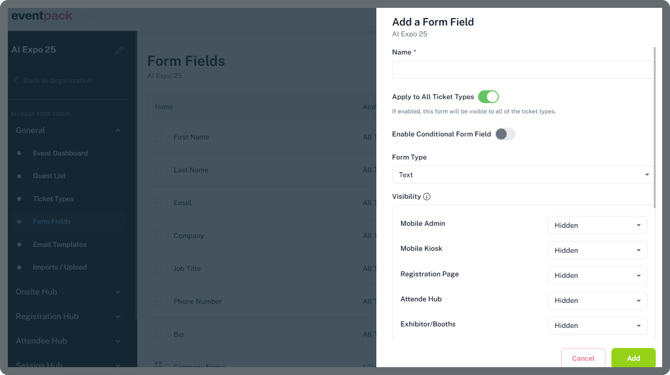
**Toggle ON Apply to All Ticket Types**
Turn this on to make the field visible for every ticket type. If disabled, you’ll need to manually select which ticket types can access this form field.
> **Note:** Before selecting a ticket type, *make sure you have created your ticket types. You can find it under the* ***General menu \> Ticket Type*** *to create your first ticket type if it doesn’t exist yet.*
Click here to learn more about[**Ticket Types**](https://www.eventpack.com/ticket-types)
**Toggle ON Conditional Form Field**
Turn this on to show the field only when a chosen parent field meets certain conditions.
Click here to learn more about how to setup **[Conditional Form Field](https://support.eventpack.com/conditional-form-field?hsLang=en)**
**Description**
This field allows you to add details or additional information about your form fields. The description will appear on the registration forms.
#### **Form Type (Answer type)**
1. **Text**
Use this for free text answers
2. **Single Select**
Use this when attendees choose one option from a dropdown
3. **Multi Select**
Use this when attendees can pick more than one option from preset answers
4. **Date**
Use this when you need to collect a date as answer - like arrival date or birthday
#### **Visibility Areas on the Platform**
This setting decide where and how the field forms can be displayed and processed. For each location you can set it to *Hidden, Optional, Read Only, or Required*.
1. **Mobile Admin**
Controls visibility and behavior for admins and staff using the Onsite Admin App
2. **Mobile Kiosk**
Controls visibility and behavior for check in kiosks on the Onsite Admin App
3. **Registration Page**
Controls what attendees see on the registration page(s)
4. **Attendee Hub**
Controls visibility and behavior inside the Attendee App or Partner Portal
5. **Exhibitor Booths**
Controls visibility and behavior for exhibitor lead capture. If a question/answer is set to Visible for Exhibitor Booths it means that this information will be visible in the lead reports if the attendee is scanned as a Lead by any exhibitor. Making this field hidden will not share the answer of this question with the exhibitor even if scanning the attendee as Lead.
6. **Invitations**
Controls how the form field will behave on invitation registration page.
- [General](https://support.eventpack.com/general?hsLang=en)
- [On-Site Hub](https://support.eventpack.com/on-site-hub?hsLang=en#main-content)
- [Badge Designer](https://support.eventpack.com/on-site-hub?hsLang=en#badge-designer)
- [Partner Hub (Exhibitors & Sponsors)](https://support.eventpack.com/partner-hub-exhibitors-sponsors?hsLang=en#main-content)
- [For Event Organizers](https://support.eventpack.com/partner-hub-exhibitors-sponsors?hsLang=en#for-event-organizers)
- [For Partners (Exhibitors & Sponsors)](https://support.eventpack.com/partner-hub-exhibitors-sponsors?hsLang=en#for-partners-exhibitors-sponsors)
- [Session Hub](https://support.eventpack.com/session-hub?hsLang=en)
- [Registration Hub](https://support.eventpack.com/registration-hub?hsLang=en)
- [Attendee Hub](https://support.eventpack.com/attendee-hub?hsLang=en)
- [Partner Hub](https://support.eventpack.com/partner-hub?hsLang=en)
- [On-Site App](https://support.eventpack.com/on-site-app?hsLang=en)
[](http://eventpack.com)
[mailto:email@email.com](mailto:email@email.com)
Copyright © 2026, Eventpack