
- Select your event and from the left side menu go to Onsite Hub > Check-in Notifications.
- Click Create in the upper-right corner to create a Check-in Notifications.
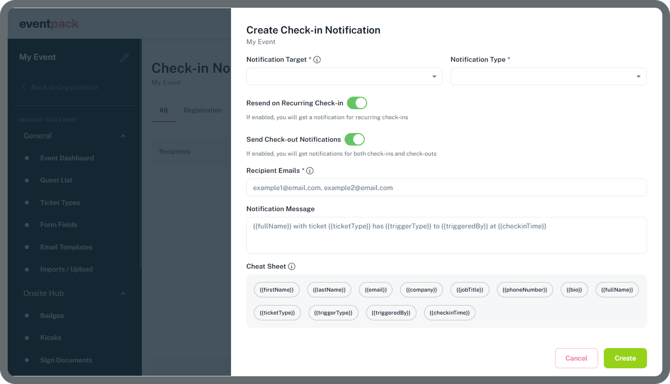
Notification Target
Select the recipients for your notification triggers. You can choose to send notifications to a specific ticket type or individual registrants.
Ticket Type:
Apply to All Ticket Types: If enabled, this notification will be applied to all of the ticket types. If this feature is disabled, you’ll need to manually select which ticket types the notification applies to.
Note: Before selecting a ticket type, make sure you have created your ticket types. You can find it under the General menu > Ticket Type to create your first ticket type if it doesn’t exist yet.
Click here to learn more about Ticket Types
Registration:
If you select Registration, you’ll need to choose which individual registrants the notification will apply to.
Resend on Recurring Check-in
When enabled, a notification will be sent for each recurring check-in otherwise it'll only be sent for the first check-in.
Send Check-out Notifications
When enabled, notifications will be sent for event check-outs.
Recipient Emails
Enter the email addresses where notifications will be sent.
Note: Please use comma separator (,) between email addresses. You must enter at least one email address.
Notification Message
You can customize the message content that will be sent in the notification.
Cheat Sheet
These fields are automatically filled in text where you can copy the text by clicking it.